WEBSTEDIQ CONTROL
Your website. Your software. Complete control.
Edit your website with AI or by hand, let WEBSTEDIQ handle maintenance and unlock smart business software. In the browser and as an app for macOS and Windows, with one account.
The web app opens soon at app.webstediq.com.
Download
The app for your computer
The same environment as in the browser, in its own window. You sign in through your browser; your password never enters the app.
macOS
Apple Silicon + Intel
Coming soon
Windows
Windows 10/11 · 64-bit
Coming soon
We only publish installers once they are signed and tested on a clean machine.
What you can do
Everything for your website, no technical knowledge needed
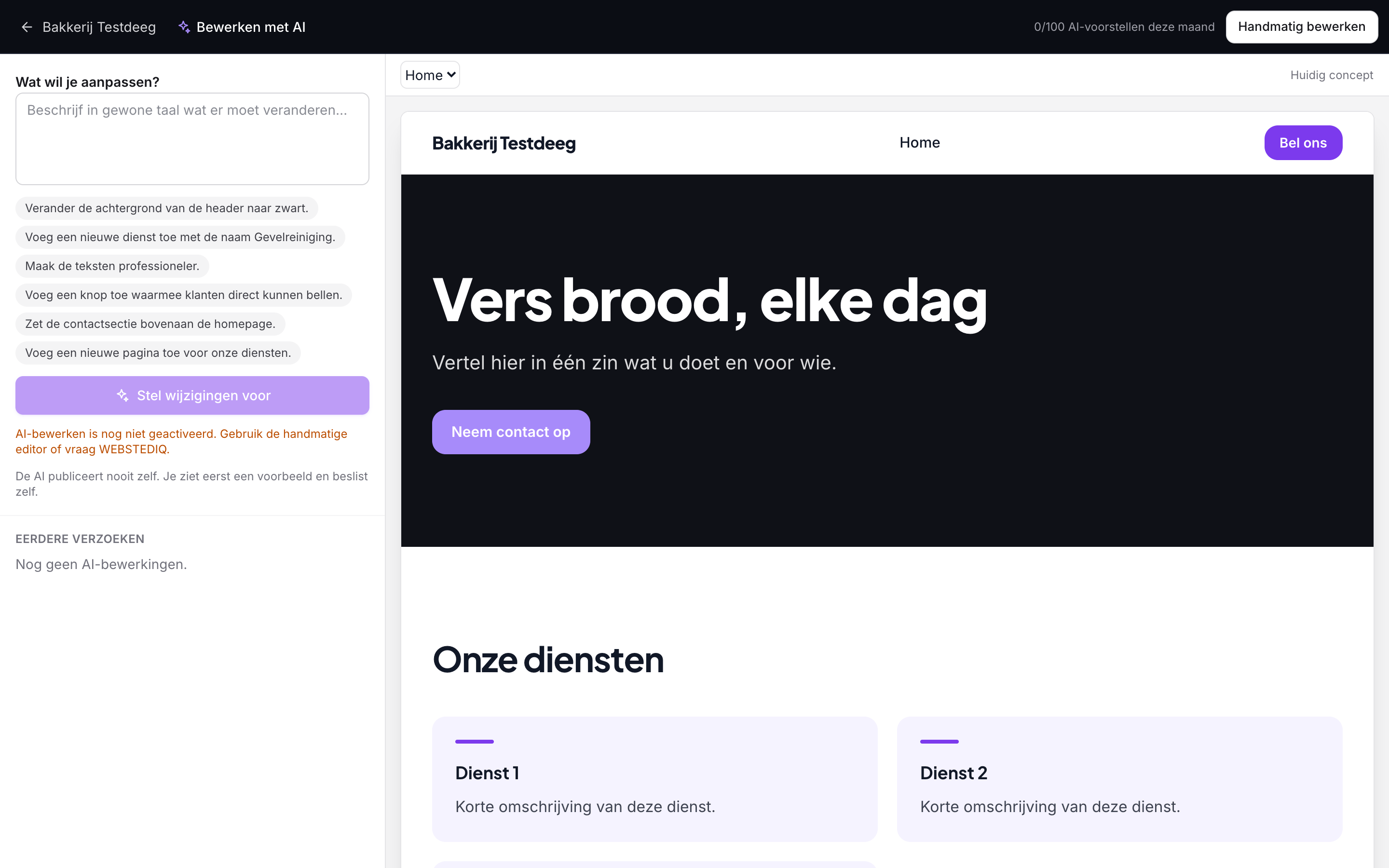
Edit with AI
Type what you want to change, such as "Add a contact button". You see a preview first and decide whether it goes live.
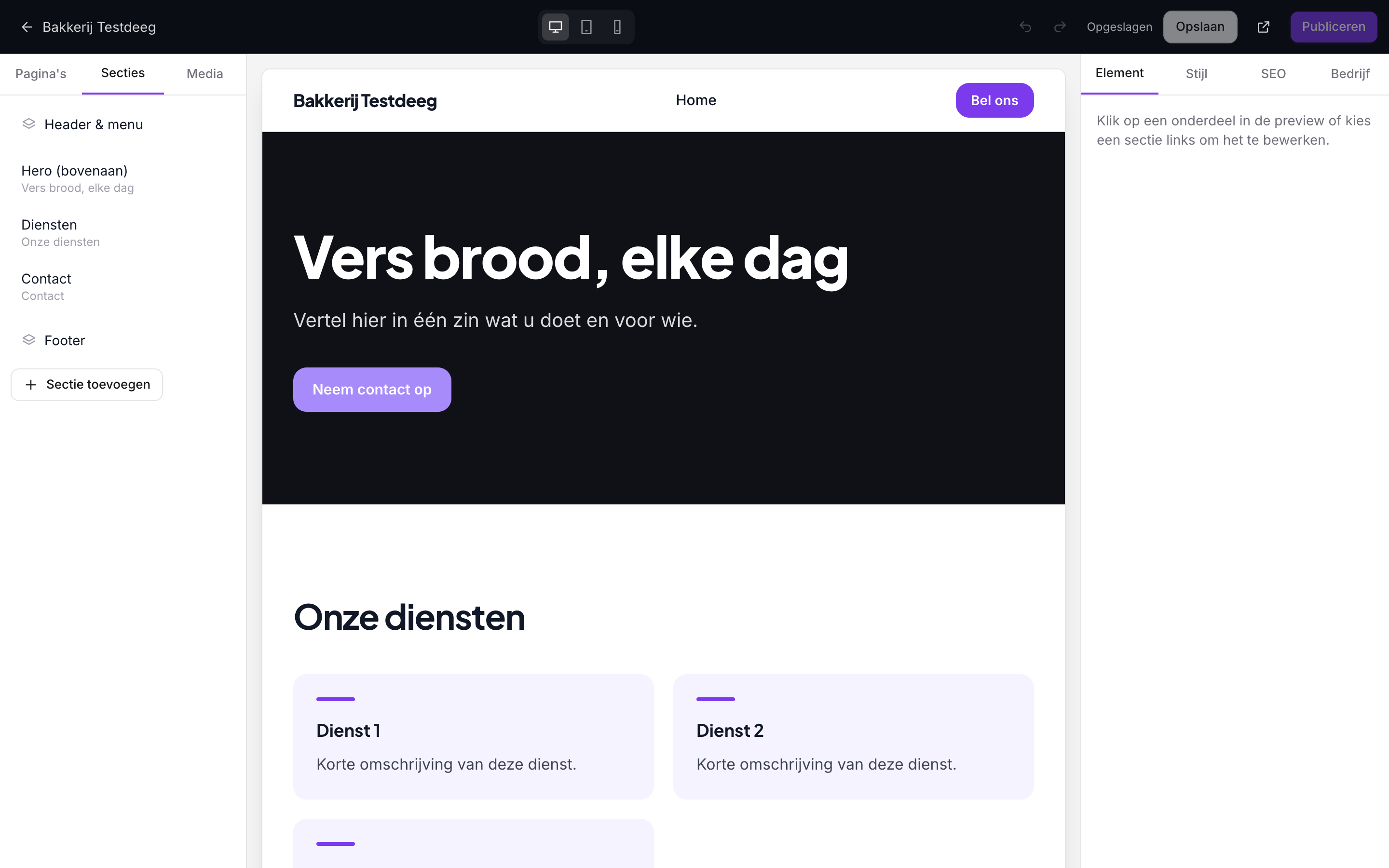
Edit by hand
Click any text or photo in the live preview and change it. With drafts, undo, version history and rollback.
Outsource maintenance
Let WEBSTEDIQ manage your website. Submit change requests and follow their progress step by step.
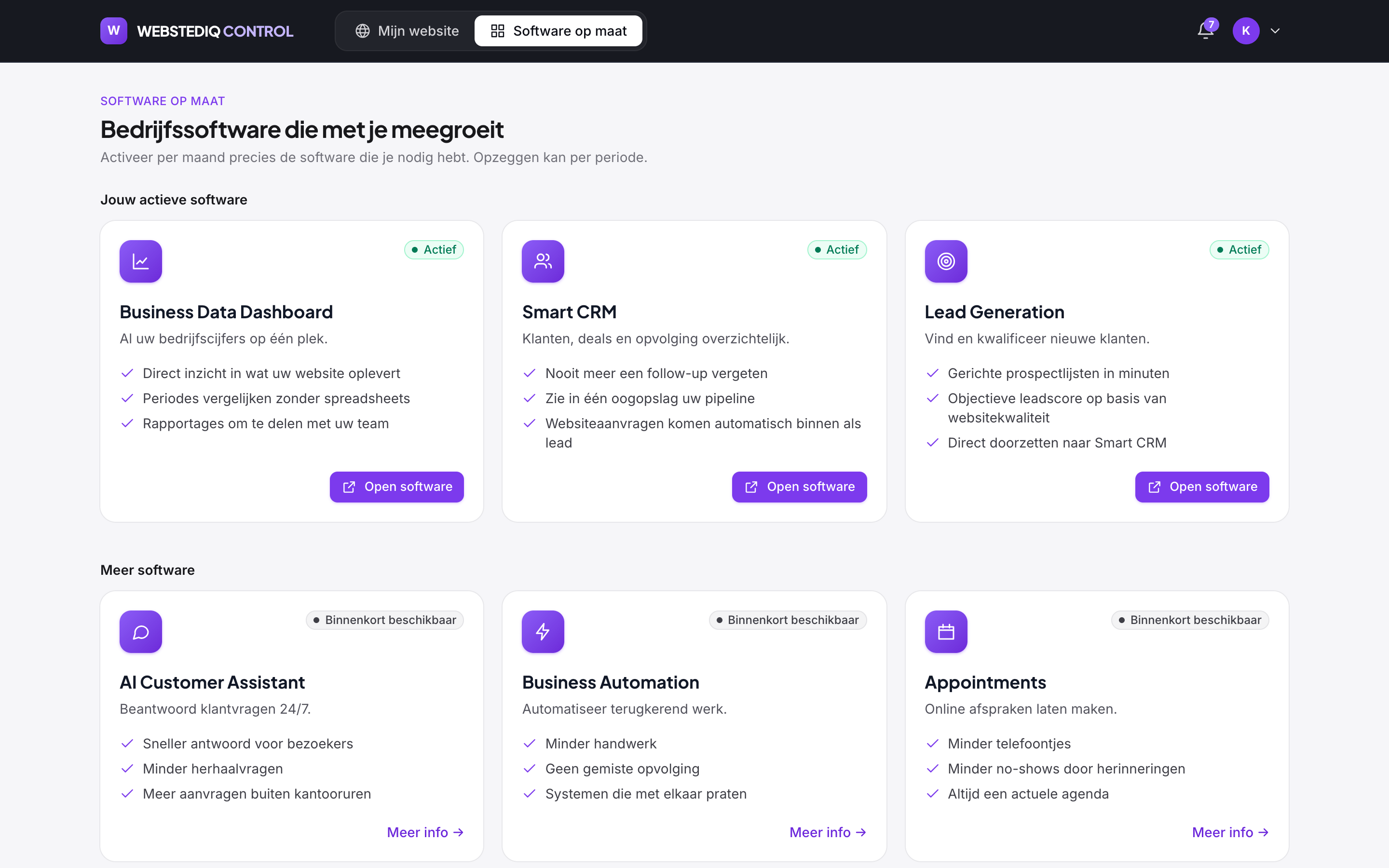
Custom software
Unlock modules such as Smart CRM, Lead Generation and a business dashboard, cancel monthly.
Secure
One account for web and desktop, two-factor authentication, per-device sessions you can revoke, and your data strictly separated from other customers.
Always a way back
Every publication is a version. Restore an earlier one into your draft with one click.
What it looks like
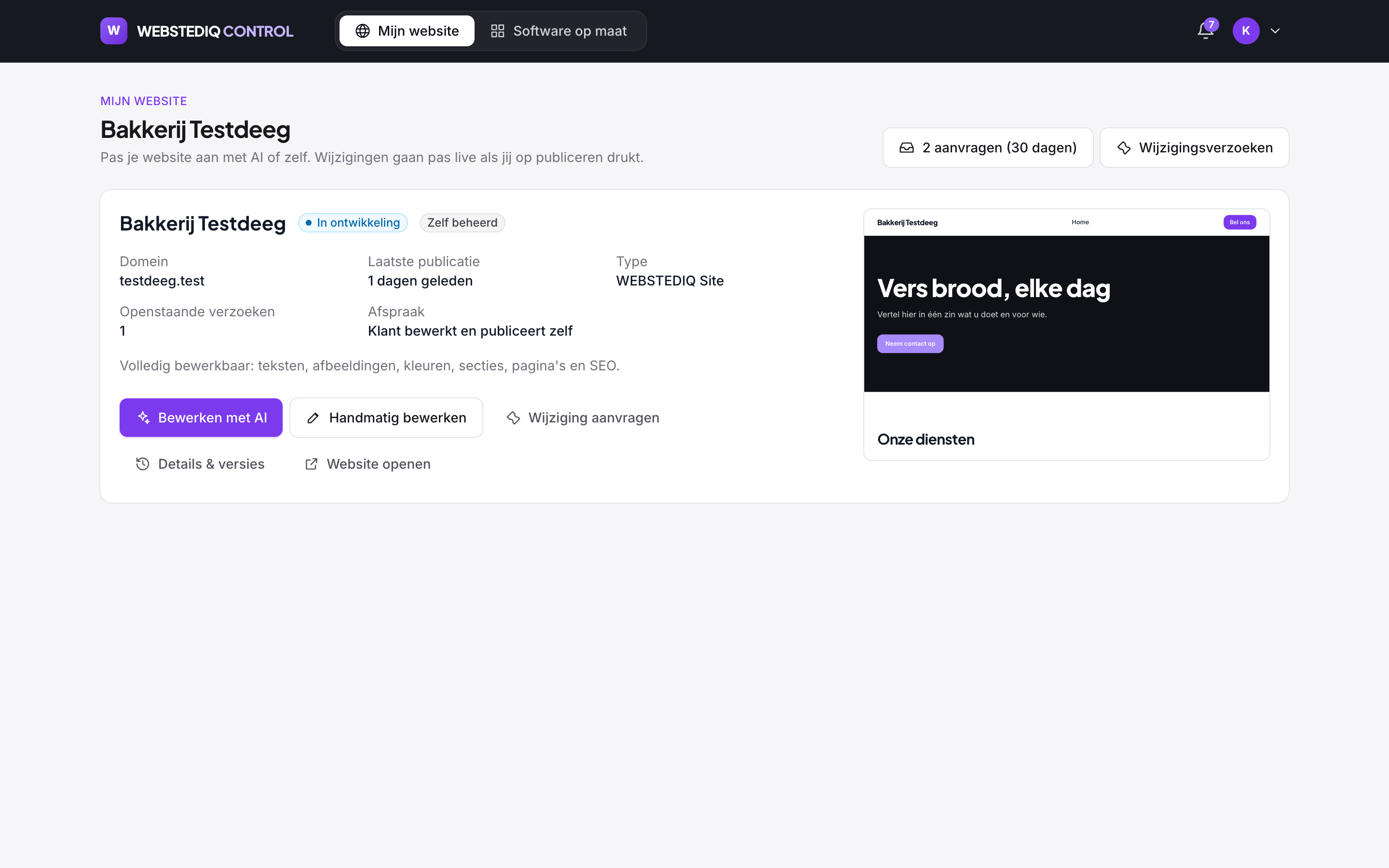
Real screens from CONTROL
Screenshots with test data. The interface is in Dutch.
System requirements
- macOS
- macOS 11 Big Sur or later, Apple Silicon and Intel
- Windows
- Windows 10 or 11, 64-bit, WebView2 (installed by default)
- Browser
- A recent version of Chrome, Edge, Safari or Firefox
- Connection
- Internet connection required; CONTROL works online
Installation
- 1macOS
Open the .dmg file and drag WEBSTEDIQ CONTROL to Applications. Start the app and click Log in: your browser opens to sign in securely.
- 2Windows
Run the installer and follow the steps. Open WEBSTEDIQ CONTROL from the Start menu and click Log in.
- 3Signing out
Use the WEBSTEDIQ CONTROL menu → Log out. The app also removes the secure session from the keychain.